

Home Assistant panel on Sonoff NSPanel Pro
This article is my adaptation of the story of enthusiast in smart homes who calls himself blakadder. His experience is below, and I used his materials in the article. Link to the original article by blakadder
Warning: I used a device from the pre-production batch, which was provided to me free of charge by Sonoff. Some of its elements may change with the official release.
For now, you can buy NSPanel Pro with a discount before the opening of sales in the Itead store.
After the shock and disappointment of the firmware release and the September update, I decided to go further. The easiest way to do this is with Android Debug Bridge.
Dissasemble
Remove the panel from the base. Remove the two screws on the back panel and then carefully detach the back plate starting from this point.


Now unscrew the small screws, the ones circled in red. Remove the harness from the touch panel and disconnect the connector to lift the PCB.


Connect the USB cable to the computer.

Install ADB drivers
Download the ADB drivers and install them.
When NSPanel Pro connects to the computer via USB, a new device should appear in the Device Manager.

Download Android platform tools and extract the contents into a folder. Open a command prompt and navigate to this folder. In my case, it’s at D:\adb.
Providing access to ADB
Run adb devices -l . It will list all connected devices with additional information.
D:\adb>adb devices -l
List of devices attached
F061512302021100016 device product:px30_evb model:px30_evb device:px30_evb transport_id:3
Run adb tcpip 5555, command to configure NSPanel Pro to listen for TCP/IP connections on port 5555.
D:\adb>adb tcpip 5555
restarting in TCP mode port: 5555
Now you can connect to NSPanel Pro wirelessly. If you do not know the IP address, type adb shell ip -o a to find it out.
Try this while you are still connected via USB to ensure everything works.
D:\adb>
adb connect 10.1.1.144
connected to 10.1.1.144:5555
Reassemble the panel and connect it to the power supply. After booting, run adb connect [ip_address].
Using ADB
With ADB, you have a powerful tool to control your NSPanel Pro. You can install and uninstall applications, get a list of running processes, free memory, and even gain root access.
Here is a list of ADB commands you can use on your NSPanel Pro.
It is handy to simulate pressing the “Home” button using adb shell input keyevent 3.
You can also get root access with adb root.
Send a file to NSPanel Pro, like a new wallpaper:
D:\adb>adb push wallpaper.jpg /sdcard/Download/wallpaper.jpg
wallpaper.jpg: 1 file pushed, 0 skipped. 18.5 MB/s (52101 bytes in 0.003s)
Installing a launcher
To make working with NSPanel easier, you need to change the default launcher, the eWeLink control panel, to a more familiar one. I chose Lawnchchair because of its small size. Download the APK to the adb folder and install it on NSPanel Pro using ADB.
D:\adb>adb install ch.deletescape.lawnchair.plah_2001.apk
Performing Streamed Install
Success
D:\adb>adb shell monkey -p ch.deletescape.lawnchair.plah 1
bash arg: -p
bash arg: ch.deletescape.lawnchair.plah
bash arg: 1
args: [-p, ch.deletescape.lawnchair.plah, 1]
arg: “-p”
arg: “ch.deletescape.lawnchair.plah”
arg: “1”
data=”ch.deletescape.lawnchair.plah”
Events injected: 1
## Network stats: elapsed time=32ms (0ms mobile, 0ms wifi, 32ms not connected)

Set the default launcher in Settings – Apps & notifications – Advanced – Default apps and set Lawnchair as “Home app.”

To enable the navigation bar, go to Settings – Display and turn on “show status bar.”
Now you can freely navigate the user interface.
Home Assistant
You can install the Home Assistant Companion app, but I have connection problems, probably because of the old WebView component used in the system. The same goes for the Fully Kiosk browser, which complains that WebView is too old.
But you can still access the Home Assistant dashboard through the browser. Download Chromium for Android and install it using the ADB command adb install chromium-106.0.5228.0.apk (version number may be different).
D:\adb>adb install chromium-106.0.5228.0.apk
Performing Streamed Install
Success
It will take some time because the apk file is big! You can run it using the launcher or using adb shell monkey – p org.chromium.chrome 1
It will complain about the lack of Google Play services. Ignore the message. Enter the Home Assistant URL and open it.


After going to the Home Assistant dashboard, tap the three dots and add the page to the home screen.


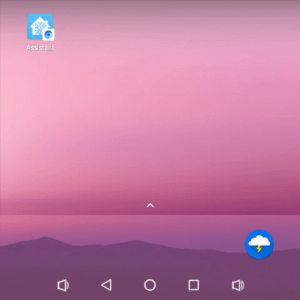
Pressing the icon opens the full-screen mode of the Home Assistant dashboard.

Capabilities
This solution is not perfect, but it’s what I’ve managed so far. The best option would be to reach out to Itead en masse and demand HA Companion or Fully Kiosk Browser support out-of-the-box. They get more sales, we get more features, it’s a win-win scenario, and now we know it’s possible. At the very least, demand that they update WebView to a compatible version. Tweet them at https://twitter.com/ITeadstudio, email them at su*****@***ad.cc, or use the contact form!
Poking around in the adb environment revealed things like mosquitto, bash scripts to interact with the Zigbee module, RS485 traces, relay 1, relay 2, and possibly more. I hope that more developers who understand Android will fully unlock this device.


