

Review of the first Matter device from Sonoff: Mini R4M
Today, I want to show you a rather interesting and perspective device from a well-known Chinese brand. Should you buy it today? You can read this article to learn about its pros and cons.
SONOFF MINI Extreme Wi-Fi Smart Switch – or MiniR4M – is almost entirely a carbon copy of the MiniR4. Visually, it’s only distinguishable by the plating color on the contacts. It’s green here.

Disassembling the MiniR4M
The build of both devices is also almost identical, the only difference being the controller microcircuit. The previous device has Esp32-DOWD installed, but this one has Esp32-C3.
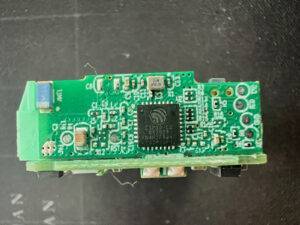
View from the relay’s side.
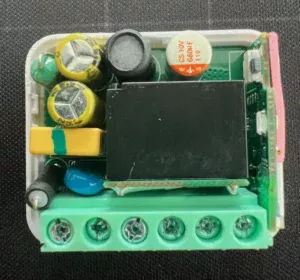
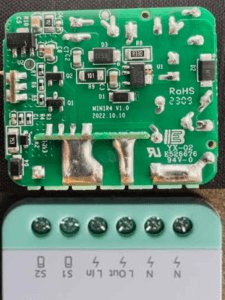
The PCB looks like this. The contacts are well-soldered, and the power tracks have a proficient cross-section. Note that the L In and S1 contacts used to connect the relay are interconnected. So, take safety precautions when connecting the device to a 220v network since the relay will have a high voltage.
How to add the MiniR4M to your smart home with eWeLink
Let’s start with the native app for Sonoff devices since you’ll only be able to upgrade its firmware and unlink the relay from the switch in said app.
In the image below, you can see the pros and cons of using the device with different smart home apps compared to eWeLink.
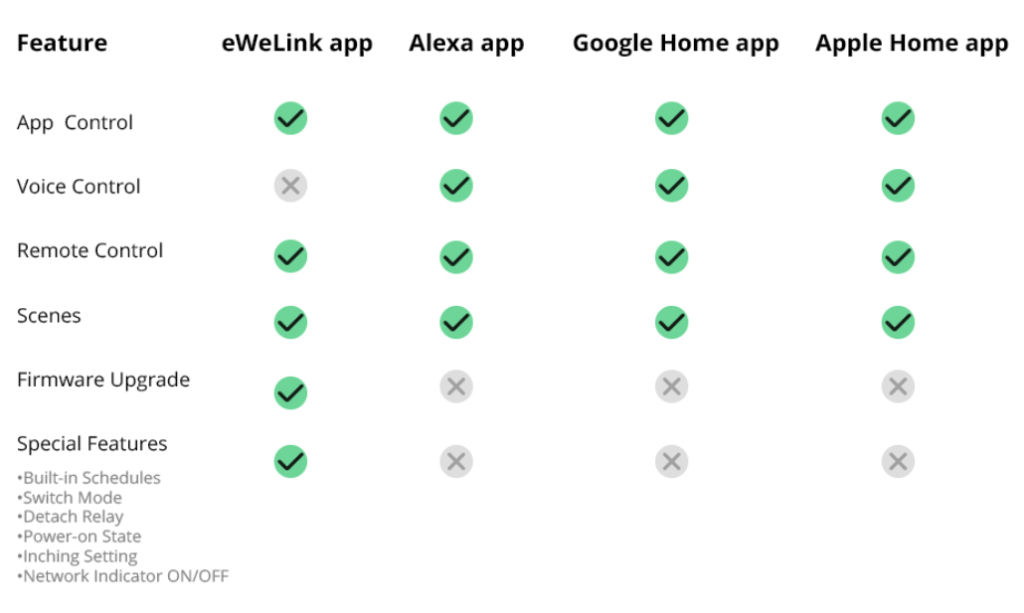
So, let’s hook the MiniR4M to the wires and connect it to the network. Here are multiple possible ways to connect it.

In my case, I connected the Shelly switch (actually a button) to the S1 and S2 connectors, the cable to L In and N, and the lamp to L Out and N.

After its first boot, after a few seconds, a pop-up to add the device to SmartThings has already appeared on my phone. Since I decided to add it to eWeLink first, I closed this pop-up.

So, after the device turns on, an LED will start blinking with a “2 short, 1 long” pattern, which means the device is in pairing mode. If that doesn’t happen, hold the button on the case for ten seconds. The phone should discover the new device. Also, connect your phone to a 2.4GHz network since the MiniR4M does not support 5GHz. One of the steps is entering the password to your Wi-Fi network. Just follow the steps on the screen.




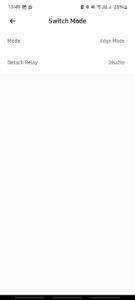
After you add the device to the app, you can control and set it up. On the main screen, only the on/off setting is visible, but there’s way more in the app. From the settings, I’m highlighting “Switch Mode” – here, you can choose the switch type, which you will connect to the relay. In my case, it’s “Pulse Mode.” If you have a regular switch, select “Edge Mode.” In the settings, you can also disconnect the switch from the relay, change the device’s behavior during power loss, turn off the LED, etc.



This amount of features should be enough for the average user, but since Sonoff positions this device as a Matter device, it should work in multiple smart home apps. By default, just as I thought, MiniR4M is a cloud device. So, let’s try to add this device to other systems using the Matter protocol.
And here is where the fun begins…
Attempts to add the MiniR4M to Home Assistant
To clarify, when writing this review, the device received a 1.0.1 firmware update, and the eWeLink app got a 5.0.1 update. So, while reading this text, all the bugs may have already been fixed.
So, to add a Matter device to a compatible smart home system, you must have a QR code. It’s already there on MiniR4M’s case, and it’s also there on the box the device came in. But hypothetically, let’s imagine that the box was already thrown away, and the device was installed on a mounting box that’s inaccessible. Here, the stock app comes to our aid, which can generate the QR code required to pair the device to Home Assistant.
For that, in the app (in the device’s plugin), click the “Enable Pairing Mode” button. In response, we get a pop-up with the QR code and, take note, two underscores without numbers. Meanwhile, the device goes into pairing mode, followed by the LED (two short and one long flash).


For convenience, I printed the screenshot with the QR code and will now attempt to use it to add the MiniR4M to Home Assistant. On the phone, in the Home Assistant app, open “Settings” – “Devices & Services,” then click the “+” button below and select the first option – “Add Matter device.” After a few seconds, the camera app will open, and we must scan the QR code. After we do that, we get an error. The device refuses to connect.

But there’s more. After returning to the eWeLink app, the MiniR4M is offline. To work with it, reset the device to factory settings. For that, hold down the button on the case for 10 seconds. But, of course, you need physical access to the device.
Adding the device to Home Assistant while bypassing eWeLink
Since we already know how to add Matter devices, no additional problems should arise. Hold the button and eventually scan the QR code on the case or the box. The QR code that you printed before serves no use anymore. The device should connect without problems in two tries at most.


In Home Assistant’s Matter integration, the device will use a “Switch” entity by default. You can always change it to a different one, for example, Light. The next part is like always – use the device however you want in Home Assistant with nearly instantaneous response time.
Home Assistant’s Matter integration has a setback. We can’t, at least not in the current version of the Matter integration, “share” the device with a different smart home system. But how does Google Home combat this issue?
Adding the MiniR4M to Google Home
Just like before, put the device into pairing mode by holding the button on the case for 10 seconds. Of course, this will reset the device to factory settings. Theoretically, after that, your phone should “discover” the device and show the corresponding pop-up. All you have to do from there is click the “Add” button and scan the QR code.
If that doesn’t happen, open Google Home. In the second tab, click the “Add +” button, then select “New Device” – “Next.” In the window that opens, select “Matter-enabled device.” Scan the QR code and wait. All left to do is select the room and name the device.




From Google Home, you can turn the device on and off.
But the fun part is that from the app, you can generate a working QR or a pairing code to connect with other systems (or to save it for later). Apart from that, you can directly add the device to pre-installed smart home systems without opening the QR code scanner.


Conclusions
In my opinion, the first Matter device from Sonoff came out interesting and perspective. According to the retailer’s vision, there should be “an out-of-the-box cross-platform experience.” But, considering the device is still recent, it doesn’t work as well as the end user would think. Even in eWeLink, the relay can ignore commands for half a minute. Bugs with QR code generation only bring more inconveniences. Hopefully, firmware updates will make the “fever” go away.
Maybe someone is waiting to install a custom firmware, like ESPHome or Tasmota. Sorry to disappoint, but according to the regulations for Matter devices, the bootloader is locked, which means you can’t change the firmware other than through OTA updates.
So, I can’t recommend this device despite considering its low price, at least for now.


Almost one year since it has been released. Did it receive some update to fix the delay and disconnection problems?
I had no problems connecting the device, it works without any problems so far. There have been one or two firmware updates over the past year, but the error with the qr code in the app has not been fixed.