

Meeting the NSPanel switch and flashing ESPHome
Last year, the Chinese company Sonoff started crowdfunding, where they presented an interesting smart device. By the end of 2021, Sonoff introduced NSPanel. This device is a rectangular device with a colored touch display sized 3,5 inches and two physical buttons.

The touch display was also created by Sonoff, this is a Nextion model.
There are two versions of the NSPanel, and they differ only in size. One is for the US market, and the other one is for the EU countries. The power and logical parts of the devices are the same. As a “brain“, the company chose the Espressif ESP32-DOWD V3, which allowed working in Wi-Fi 4 802.11n/g/n networks. Bluetooth 4.2/5.x is only used when setting up the device.
Connecting NSPanel to the power grid
To set up and control the device you need to download the eWeLink app, it must be familiar with Sonoff devices owners. If you do not have an account yet, create it, or log onto your account. eWeLink lets you control connected devices from all around the world where the Internet connection is established.
So, to connect the NSPanel on the phone you need to turn on Bluetooth. After that, connect the device to the power grid.
Use safety precautions when working with high voltages!
In the eWeLink app press “add new device“. Then, you will see the device on the screen, tap on it to add it. Then, you may need to enter your Wi-Fi credentials. After connecting, the NSPanel most likely will ask you to update its firmware. Do it, because this update may contain bug fixes or performance improvements. The update may take a while.
The power part of the switch includes two relays that can withstand up to 16A of current. This means that you can connect two additional electric devices. It could be not only lighting devices but also, for example, a warm floor controller. Below is a switch connecting scheme.

Setting up the NSPanel in eWeLink
In the eWeLink application, you can switch one of the switch relays to thermostat mode, then the built-in thermal sensor can control the temperature in the room. For the thermostat, choose the heating or cooling mode depending on the device you want to connect (heater or cooler). Set the target temperature in the room and the device will turn off when it reaches the target temperature.

To reach the thermostat screen on the switch, swipe right on its screen. One more swipe will lead you to widgets. These are pictograms with which you can control other smart devices. This way you can control plugs or bulbs, and also their groups. In addition, you can create widgets to load a scene.

You need to create widgets in the eWeLink app. The max widget number is 8.

To control the device using voice assistants create the appropriate integration in the eWeLink app. In addition, Sonoff allows controlling the switch in a local network, which enables integrations into alternative smart home control systems. Enable the corresponding item in the device settings.

Getting ready to launch ESPHome
I think that this smart device is “smart” only when it can work independently of cloud services. NSPanel can work locally but sadly, its widgets don’t work without a network connection. Essentially, you can only control two relay devices through a local network.
Just as I stated above, the logical part of the switch is a Nextion display that is connected to the esp32 controller. Such a tandem gives us hope for the ability to easily load alternative firmware. And really, “tasmota” firmware already exists for our device, work on creating an NSPanel component for ESPhome is also in full swing.
Let’s look at the PCB of the logic unit. To take it out, lightly press the screwdriver on the groove in the center. Remember to turn off the power beforehand!

Now you need to unscrew two screws that hold the protective plate. After you carefully remove the plate, you will see the PCB with the esp32 controller microcircuit.

You will see 5 contacts in the lower corner. They are marked as 3V3, ESP_TX, ESP_RX, GND, and IO0. The last contact is a “zero” pin controller. To switch the controller to firmware mode, connect it to the neutral wire.
To flash the controller’s firmware, you will need a usb2uart (USB to TTL converter) adapter. Before you connect it to the computer, set the voltage to 3.3V, this is important!

Using Dupont wires, connect the adapter to the PCB: VCC – 3V3, GND – GND, RX – ESP_TX, TX – ESP_RX. Connect the IO0 pin on the PCB to the neutral wire on the contact pad (green wire on the picture)

Pay attention: If the Dupont wire contacts protrude beyond the contact holes on the board, they will touch the metal plate of the display. This can lead to a short circuit and both the USB adapter and NSPanel chips failure! To avoid this, disconnect the display cable and remove the PCB from the chassis.
Downloading ESPHome onto the NSPanel
Now you can confidently download the ESPHome firmware. Connect the USB adapter to the computer, and in the device manager, look what COM port it received. Now, in the ESPHome interface, you can create a new node. To be honest, downloading empty code onto esp32 and then working with the created node using Wi-Fi would be enough. To do this, select the firmware option of the ESP controller connected to the computer. Then, select the COM port in the popup. Downloading the firmware takes a few minutes. The contacts need to stay connected!
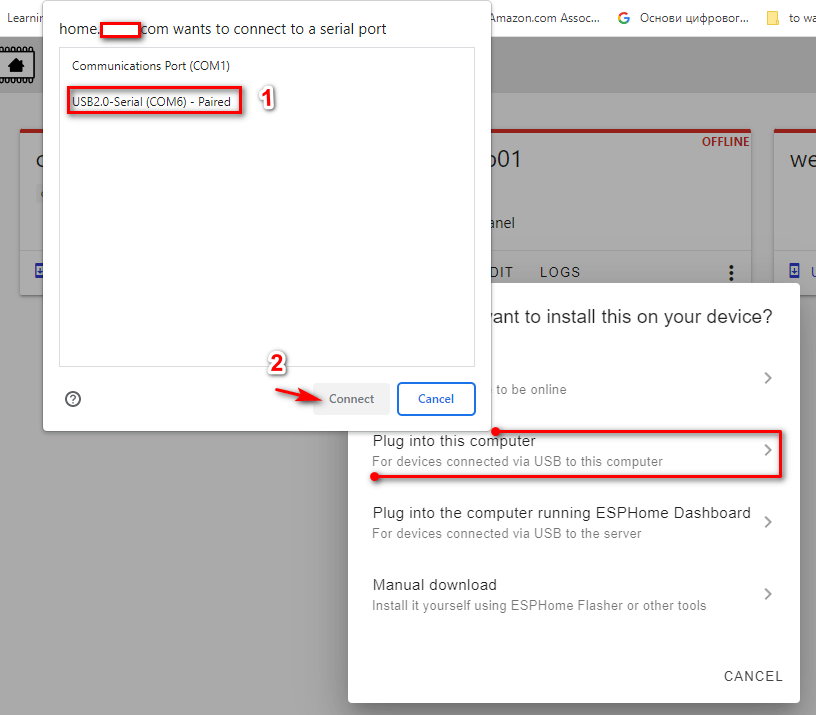
After the firmware is loaded, disconnect the wires and assemble the switch. After connecting the NSPanel to the network, you can use the switch just like a regular esp32 controller. Now let’s download an already prepared code.
esphome:
  name: esp-nsp01
  comment: Sonoff NSPanel
esp32:
  board: esp32dev
wifi:
  networks:
  - ssid: !secret ssid
    password: !secret password
    manual_ip:
      # Set yours
      static_ip: 192.168.10.200
      gateway: 192.168.10.1
      subnet: 255.255.255.0
  ap:
    ssid: "Fallback Hotspot"
    password: !secret ap_password
time:
  - platform: homeassistant
    id: homeassistant_time
logger:
  on_message:
    level: DEBUG
    then:
ota:
web_server:
http_request:
  useragent: esphome/device
  timeout: 5s
substitutions:
  switch_id: "nsp01"
  friendly_name: "NSPanel"
uart:
  tx_pin: 16
  rx_pin: 17
  baud_rate: 115200
external_components:
  - source: github://pr#2702
    components: ["nspanel"]
    refresh: 0s
interval:
  - interval: 1min
    then:
       - script.execute: nspanel_weather
nspanel:
  id: nspanel1
  time_id: homeassistant_time
  temperature: ${switch_id}_temperature
  eco_mode_switch: ${switch_id}_eco_mode
  screen_power_switch: ${switch_id}_screen_power
  relays:
    - ${switch_id}_relay_1
    - ${switch_id}_relay_2
  widgets:
    - type: scene
      name: Mario
      on_click:
        - logger.log: Mario Scene tapped
        - rtttl.play: "Super Mario:d=4,o=5,b=100:16e6,16e6,32p,8e6,16c6,8e6,8g6,8p,8g,8p,8c6,16p,8g,16p,8e,16p,8a,8b,16a#,8a,16g.,16e6,16g6,8a6,16f6,8g6,8e6,16c6,16d6,8b,16p,8c6,16p,8g,16p,8e,16p,8a,8b,16a#,8a,16g.,16e6,16g6,8a6,16f6,8g6,8e6,16c6,16d6,8b,8p,16g6,16f#6,16f6,16d#6,16p,16e6,16p,16g#,16a,16c6,16p,16a,16c6,16d6,8p,16g6,16f#6,16f6,16d#6,16p,16e6,16p,16c7,16p,16c7,16c7,p,16g6,16f#6,16f6,16d#6,16p,16e6,16p,16g#,16a,16c6,16p,16a,16c6,16d6,8p,16d#6,8p,16d6,8p,16c6"

    - type: scene
      name: Friends
      on_click:
        - logger.log: Friends Scene tapped
        - rtttl.play: "Friends:d=8,o=5,b=100:16d,g,a,c6,b,a,g.,16g,d,g,a,2a,p,16p,16d,g,a,c.6,16b,16a,g.,16c6,b,a,g,2d6,p,16p,16c6,c6,c6,c6,c6,c6,c.6,16c6,b,2b,p,16a,16a,16b,16c6,c6,c6,c6,c.6,16b,a.,16g,g.,16d,16g,16a,b,4a,4g,p"

    - type: empty
    - type: empty
    - type: empty
    - type: empty
    - type: empty
    - type: empty
output:
  - platform: ledc
    id: ${switch_id}_buzzer_out
    pin:
      number: 21
rtttl:
  id: ${switch_id}_buzzer
  output: ${switch_id}_buzzer_out
api:
  id: api_id
  services:
    - service: send_json
      variables:
        my_type: int
        my_json: string
      then:
        - lambda: 'id(nspanel1).send_json_command(my_type,my_json);'
switch:
# Restart Switch
  - platform: restart
    name: "${switch_id} Restart"
  - platform: gpio
# Left relay
    name: ${switch_id} Relay 1
    id: ${switch_id}_relay_1
    pin:
      number: 22
  - platform: gpio
# Right relay
    name: ${switch_id} Relay 2
    id: ${switch_id}_relay_2
    pin:
      number: 19
  - platform: gpio
    id: ${switch_id}_screen_power
    entity_category: config
    pin:
      number: 4
      inverted: true
    restore_mode: ALWAYS_OFF
    on_turn_on:
      then:
        - lambda: |-
            uint8_t rssi = 0;
            rssi = (wifi::global_wifi_component->wifi_rssi() * -1) / 20.0f;
            std::string json_str = json::build_json([rssi](JsonObject root) {
              root["wifiState"] = "connected";
              root["rssiLevel"] = rssi;
            });
            id(nspanel1).send_json_command(0x85, json_str);
        - delay: 6s
        - script.execute: nspanel_weather

  - platform: template
# Screen dimmer switch
    id: ${switch_id}_eco_mode
    entity_category: config
    restore_state: true
    optimistic: true

binary_sensor:
# NSPanel's physical buttons
  - platform: gpio
    id: ${switch_id}_button_1
    name: ${switch_id} Left Button
    pin:
      number: 14
      inverted: true
    on_click:
      - switch.toggle: ${switch_id}_relay_1
  - platform: gpio
    id: ${switch_id}_button_2
    name: ${switch_id} Right Button
    pin:
      number: 27
      inverted: true
    on_click:
      - switch.toggle: ${switch_id}_relay_2
sensor:
# Wifi
  - platform: wifi_signal
    name: "${switch_id} WiFi Signal Sensor"
    update_interval: 60s
# nspanel temperature sensor
  - platform: adc
    id: ${switch_id}_ntc_source
    pin: 38
    update_interval: 10s
    attenuation: 11db
  - platform: resistance
    id: ${switch_id}_resistance_sensor
    sensor: ${switch_id}_ntc_source
    configuration: DOWNSTREAM
    resistor: 11.2kOhm
  - platform: ntc
    id: ${switch_id}_temperature
    sensor: ${switch_id}_resistance_sensor
    calibration:
      b_constant: 3950
      reference_temperature: 25°C
      reference_resistance: 10kOhm
    name: "${switch_id} Temperature"
  - platform: homeassistant
    id: temperature_sensor
    entity_id: sensor.openweathermap_temperature
    accuracy_decimals: 1
  - platform: homeassistant
    id: wfth
    entity_id: sensor.openweathermap_forecast_temperature
    accuracy_decimals: 1
    internal: true
  - platform: homeassistant
    id: wftl
    name: wftl
    accuracy_decimals: 1
    entity_id: sensor.openweathermap_forecast_temperature_low
    internal: true
  - platform: template
    name: "icon_code"
    id: icon_code
    lambda: |-
      if (id(wcond).state=="sunny") {return 1;}
      else if (id(wcond).state=="partlycloudy") {return 2;}
      else if (id(wcond).state=="cloudy") {return 7;}
      else if (id(wcond).state=="foggy") {return 11;}
      else if (id(wcond).state=="snowy") {return 20;}
      else if (id(wcond).state=="windy") {return 32;}
      else if (id(wcond).state=="rainy") {return 40;}
      else {return 30;};


      //If your weather provider provides other weather status values ("sunny", "partlycloudy", "rainy" and others )
      //substitute them above, replacing or adding the appropriate values, the size of the letters matters
      //below are possible options for weather icon numbers for the NSPanel display

      //1 = sunny
      //2 = sun+cloud
      //7 = cloud+blue cloud
      //11 = cloud+fog
      //15 = cloud rain lightning
      //20 = cloud+snowflake
      //22 = cloud + 3 snowflakes
      //22 = cloud + 5 ice crystals
      //22 = cloud + rain + snow
      //30 = red thermostat
      //31 = blue thermostat
      //32 = wind
      //40 = rainy cloud

    update_interval: 60s

text_sensor:
  - platform: homeassistant
    id: wcond
    name: wcond
    entity_id: sensor.openweathermap_condition


script:
  - id: nspanel_weather
    then:
      - lambda: |-
          int wftl_int=30,wfth_int=0,icon_code_int=0;
          wftl_int = int(id(wftl).state);
          wfth_int = int(id(wfth).state);
          icon_code_int = int(id(icon_code).state);
          id(nspanel1).send_json_command(0x81, "{\"HMI_weather\":" + to_string(icon_code_int) + ",\"HMI_outdoorTemp\":{\"current\":"+ to_string(id(temperature_sensor).state) +",\"range\":\"" + to_string(wftl_int) + "," + to_string(wfth_int) + "\"}}");
After reboot, the switch will have a familiar interface. I want to warn you: There’s no official thermostat support, so I didn’t add it in the code. The thermostat, just like some widgets, could be added by JSON requests. The format which JSON should have can be read here. And here you can find another variant of the code, already bundled with some widgets and a thermostat. One thing, you will need to replace the device IDs with yours.
For an example of scene widgets, I added code that will turn off melodies on the built-in NSPanel booster (piezodynamic). You can add and load any scene with Home Assistant.
After the official release of NSPanel components for ESPHome, I plan to update the article, so check for updates. In addition, there is a way to fully change the interface and switch from the NSPanel Protocol, since onboard of the switch we have Nextion display and esp32, but that is a topic for another article.


