

Setting up the integration for Nest devices in Home Assistant
A little over a month ago, I made a review on the Nest Learning Thermostat. It is a handy device that will support the comfortable temperature inside your room and will save your money on heating at the same time.
As you know, Google owns Nest, and how it often happens in big companies, not all areas of production keep up with user requests. And the fact that Google has partially closed the Nest API has been sad news for independent developers. If you use the Nest app, which manages only its own devices, you may have paid attention to the fact that the app did not update for quite a while. It also does not have that many devices.
I think it will be much more convenient for anyone to control their devices from within one app. I chose Home Assistant as the system since you can integrate many devices from different brands, manage them, and add any automatization algorithm.
I must warn you: to get access to the Nest Smart Device Management API you will need to pay 5 dollars. It is a one-time payment for API access.
After finishing setup through Home Assistant, you will gain access to these essences: Climate, Sensor, Camera.
Registering device access
For this step, enable Nest API and create an account for Home Assistant to exchange info with the Nest API.
Creating and configuring Cloud Project in the Cloud Console:
- Go to Google Cloud Console.
- If this is your first time, you need to create a new project in Google Cloud. Click on “Create Project”, and then “New Project”.
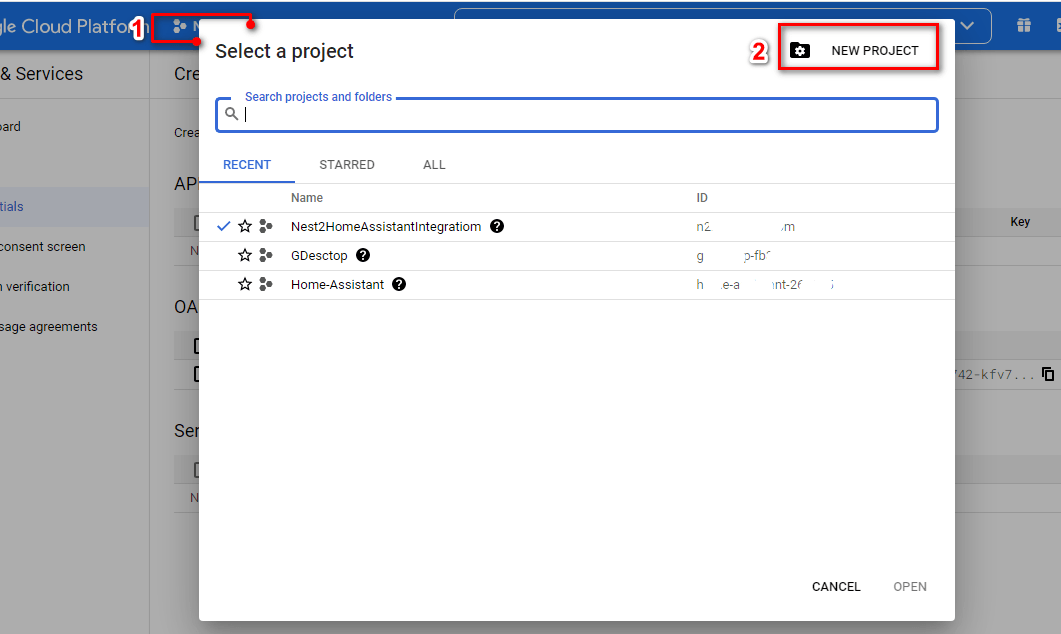
- Name your project and click on “Create”.
- Go to “APIs & Services > Library”. Here you can enable the API.
- Search for “Smart Device management” and click on “Enable”.
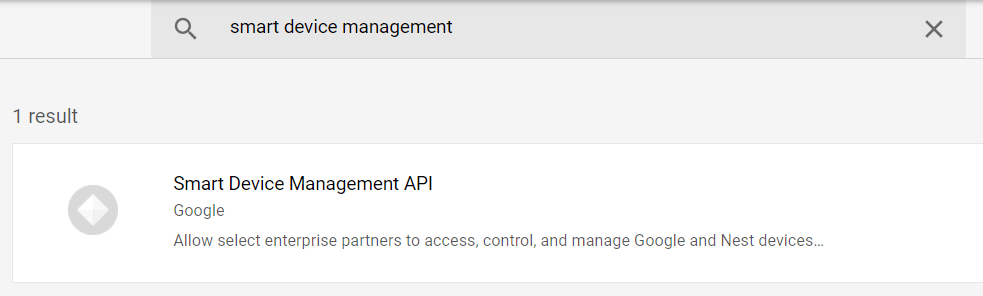
- Now enter “Cloud Pub / Sub API” in the API library search box and click “Enable.”
Now you have a project ready to set up authentication with OAuth.
Setting up OAuth in Cloud Console Consent Screen
In this section, you configure the OAuth consent screen. It is needed to give Home Assistant access to your project.
- Go to Google API Console.
- Click on “OAuth consent screen” and start setting it up.
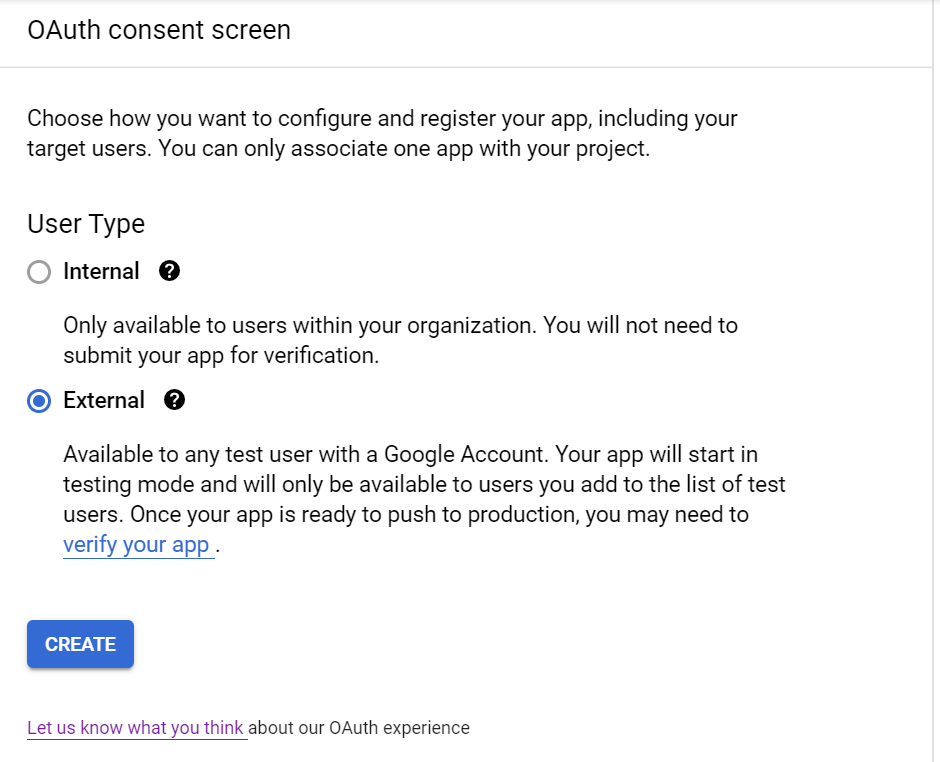
- Choose “External” (this is the only option if you are not a G-Suite user), and then click on “Create”.
- On the “App Information” screen, enter the App name and the User Support E-Mail, and then type in your E-Mail address in the “Developer contact email” section. They are displayed only during the OAuth to give Home Assistant access to your account. Click on “Save” and “Continue”. Do not add unnecessary info (for example, the logo) to avoid additional Google checks.
- On the “Scopes” step, click on “Save and Continue”.
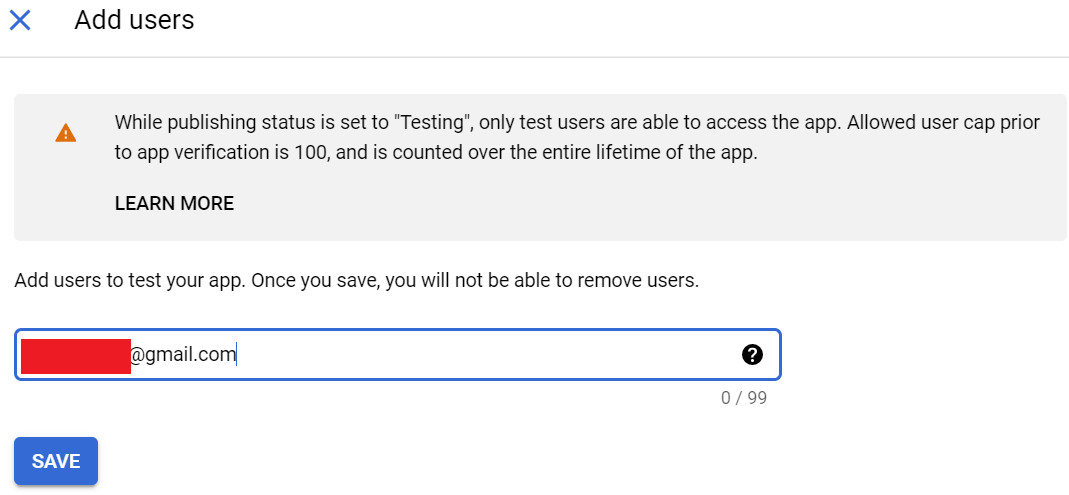
- On the “Test Users” step, add your Google account (ex*****@***il.com) to the list. Click on “Save” in your test account and then “Save and Continue” to finish the process.
- Go back to the OAuth consent screen and click “Publish App” to set the “In Production” status.
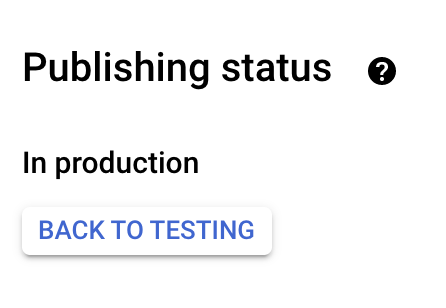
- The warning states that your application will be available to any user with Google Accounts that you have entered on the application information screen. It does not compromise your Google Account or your Nest data.
- Make sure to disable the “Testing” status since you will be logging out of your Google account every week.
Configuring OAuth client_id and client_secret in the Cloud Console
At the end of this section, you will get the client_id and client_secret you need for the next steps.
- Go to the “Credentials” page and click on “Create Credentials”.
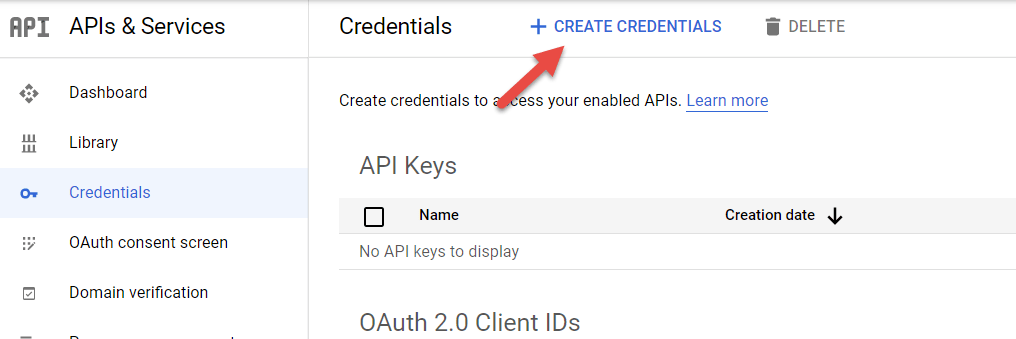
- Select “OAuth client ID” in the drop-down list.

- Choose “Desktop App” in the “Application type” type field.
- Give an understandable name to your credentials.
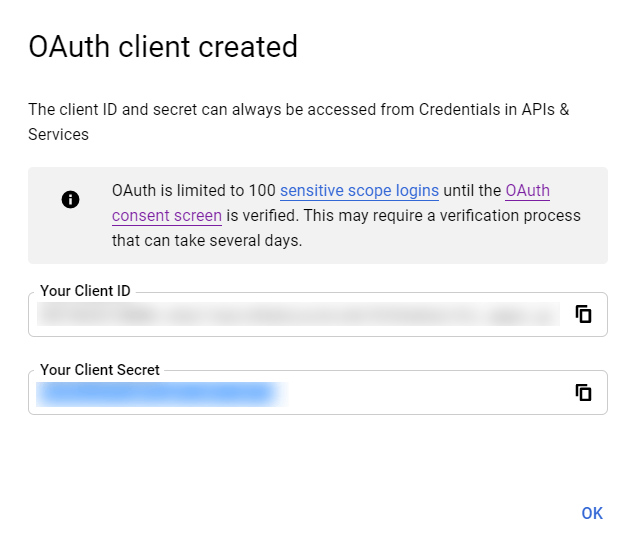
- You will now see a message created by the OAuth client. Pay attention to “Client ID” and “Client Secret”. They are crucial to the next steps.
Creating device access for project_id in the Device Access Console
Now that you have set up the authentication, create the Nest Device Access Project, which requires $5. When done, you will have device access to project_id, which is crucial for further steps.
- Go to the “Device Access Registration” page. Click on the “Go to the Device Access Console” button.
- Check the “Accept the Terms of Service” and click on “Continue to Payment” where you will need to pay 5 dollars.
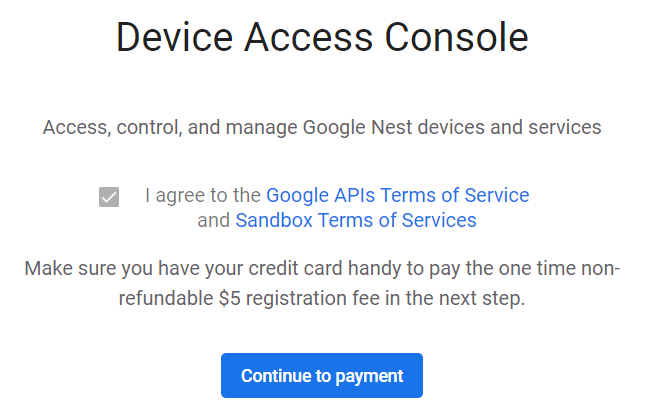
- The “Device Access Console” should now be displayed. Click on “Create project”.
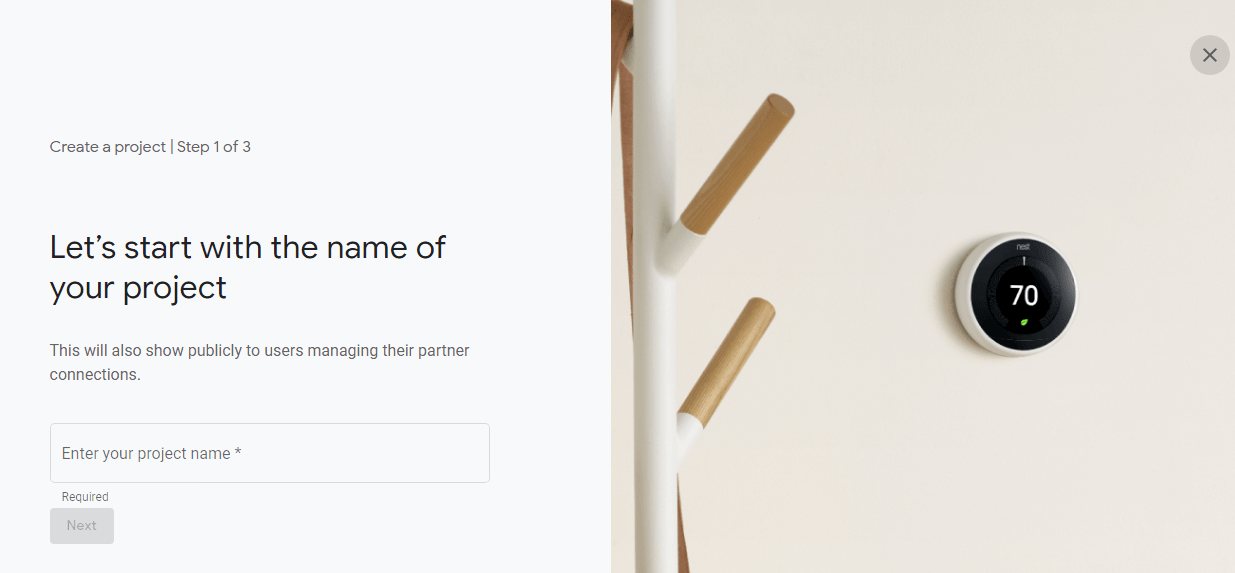
- Give a name to your project and click on “Next”.
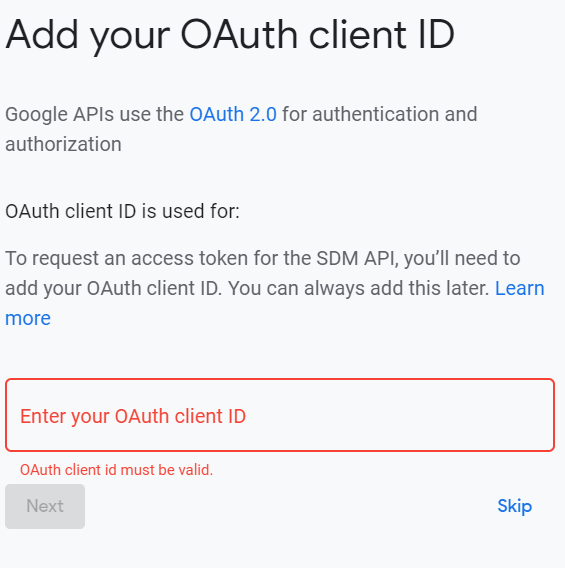
- You then are prompted to enter the OAuth client ID you created earlier in the previous section. Click on “Next”.
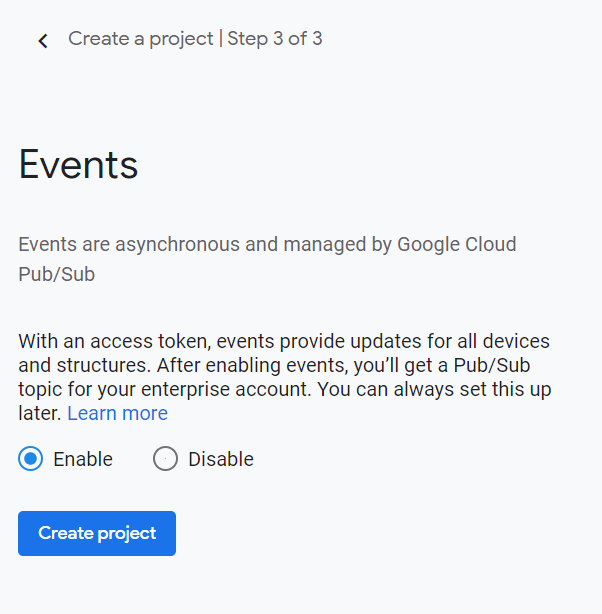
- Turn on “events” by clicking on “Enable and Create project”.
- Note the Project ID. You currently have project_id, client_id, and client_secret required for Home Assistant.
Setting up Home Assistant
Now you have everything required to set up Nest in Home Assistant. Open “configuration.yaml” and write according to the sample you see below.
# Example configuration.yaml entry
nest:
  client_id: CLIENT_ID
  client_secret: CLIENT_SECRET
  # "Project ID" in the Device Access Console (not Cloud Project ID!)
  project_id: PROJECT_ID
Be sure to restart Home Assistant in the “Server Controls” section.

Setting up devices
After you added a Nest configuration entry to “configuration.yaml” and rebooted Home Assistant, you need to add Nest integration through the user interface. To do this, you can use the “My” button:

You can do the same manually:
- Go to your Home Assistant interface.
- On the sidebar, click on “Configuration”.
- In the configuration menu, select “Integrations”. (in version 2021.12 Devices & Services)
- In the lower right corner, click the “Add Integration” button.
- Use the search box, select “Nest” and follow the instructions.
Setting up the Nest integration will guide you through the steps of authorizing your Home Assistant to access your account on Nest devices.
Setting up OAuth for Device Authorization
This section will allow Home Assistant to access your account by generating an OAuth token.
- Select “OAuth or Apps”, because we created credentials for the computer programs above in the Google Cloud Console.

- Click the “authorize your account” link.

- A new tab will open where you can select your Google Account. It should be the same developer account you set up before.
- The Google Nest permissions screen will allow you to choose which devices to configure and select from several of your homes. Maybe you want to turn on everything. However, you can skip any feature you do not need to use.
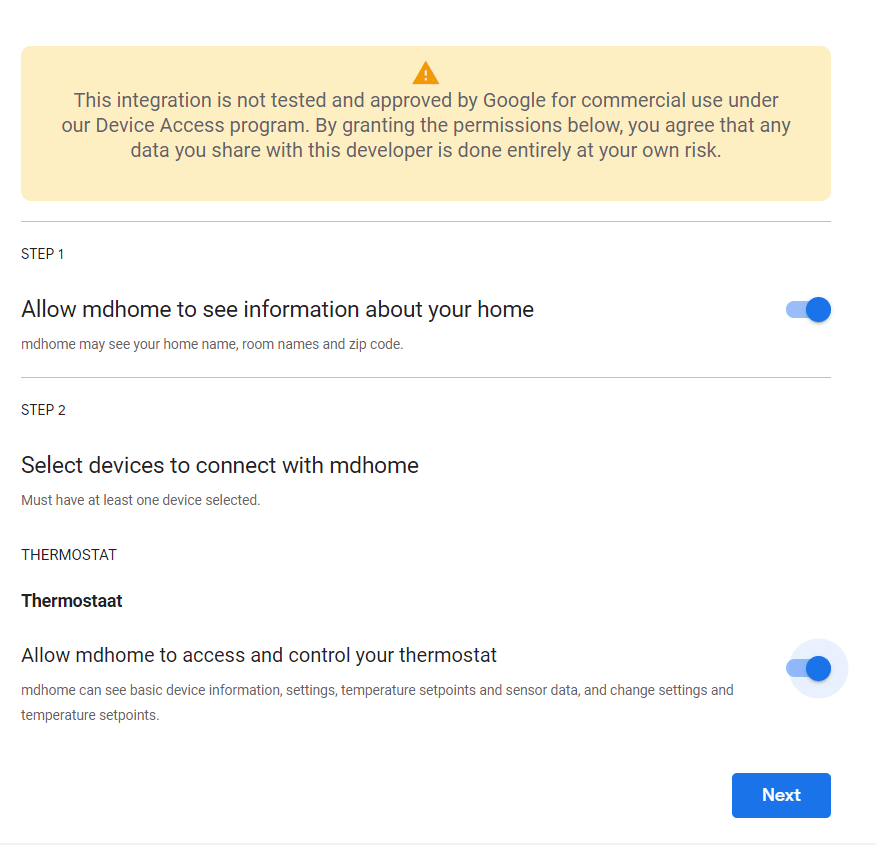
- You will get redirected to another account selection page.
- You may see a warning screen stating that Google has not tested this program because you have just set up an unverified developer workflow. Click on “Continue” to continue.
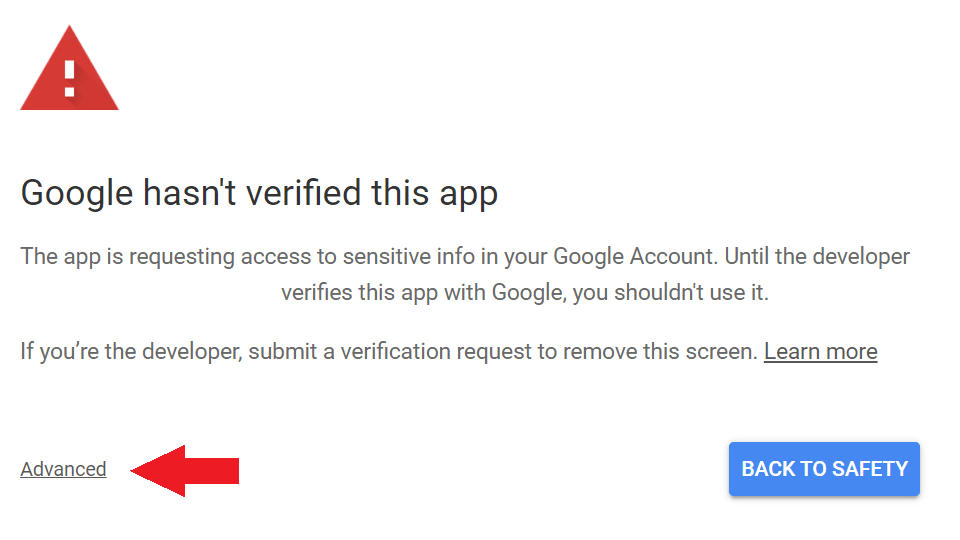
- You will then get prompted to grant additional permissions. Click on “Allow”.
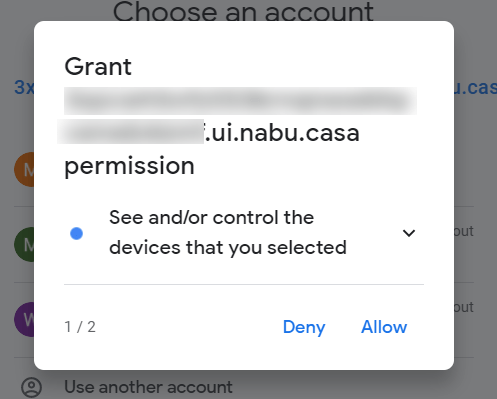

- Confirm that you want to grant permanent access to Home Assistant.

- Copy the token.

- Insert the token into the Google Home Assistant Link Account dialog box.

- The next step is to enter the Cloud Project ID to receive updates from your devices. Open the Cloud Console and copy the Project ID.

If everything is as planned, you will see a working Nest integration.

Using automation and triggers
Nest integration makes device triggers available and the ability to enable automation in Home Assistant. For complete information, see the Home Assistant Automation Guide.

You can use nest / set_away_mode to set Home or Away mode:
# Example script to set away, no structure specified so will execute for all
script:
  nest_set_away:
    sequence:
      - service: nest.set_away_mode
        data:
          away_mode: away
Controlling the thermostat

The Nest climate platform allows you to control the thermostat from Nest. However, please note that due to the limitations of the European Nest E thermostat, integration with the Home Assistant is not possible for this thermostat.
After setting up the integration and adding the thermostat card to the Lovelace interface, you will be able to control your Nest devices via Home Assistant.

Also, it is now possible to add new climate entities in triggers and automation, calling the appropriate service using previously created configuration files. You can view the templates in the Home Assistant developer tools.


