

Setting up Lovelace UI on NSPanel
In one of my previous articles, I introduced you to a way to flash NSPanel for better compatibility with Home Assistant. We used ESPhome as a basis, which controlled the ESP32 controller. But we left the firmware of the device screen unchanged, which allowed us not to change the appearance. In turn, the screen with the microcontroller “communicated” with each other using the NSPanel Protocol.
I suppose that someone may not like the standard NSPanel interface. Perhaps you will not even be satisfied with the limited number of screens. Let me remind you that you can switch interface screens using swipes. There are only three of them.
That is why today, I offer you a way to change the NSPanel interface to an alternative one called NSPanel Lovelace UI.
Preparing and flashing NSPanel
I chose Tasmota as the main firmware in NSPanel Lovelace UI. Although it is possible to add an ESPHome component, I didn’t succeed with ESPHome and decided to configure Tasmota. That’s why I’ll tell you about this particular firmware.
So, let’s start with flashing Tasmota firmware to the ESP32 controller in NSPanel. If you, like me, have already installed ESPHome on this device, the easiest way is to “update” over the air (OTA). Go to the NSPanel web interface, select the previously downloaded firmware file from your computer at the bottom of the page and click “Update.” After about a minute, the device will reboot with the new Tasmota firmware.

If you still have the original “factory new” firmware, you will have to disassemble the NSPanel and download the Tasmota firmware using a USB device, sometimes called a TTL converter. I already told you how to do it in this article.
After flashing and rebooting the device, the microcontroller will not connect to your Wi-Fi because it does not know anything about it yet. It will create its own open Wi-Fi access point with the word Tasmota in the name. Then, connect your smartphone to the network and enter the address 192.168.4.1 in your browser, the temporary address of our NSPanel. Here you can choose your Wi-Fi network and save your password. Save the settings. After rebooting, the NSPanel will connect to your Wi-Fi. I highly recommend specifying a static address for our device in the router settings.
Configuring NSPanel with Tasmota firmware
The first thing to do is to specify a device template for Tasmota. To do this, go to the device’s IP address in the browser. In “Configuration,” click Configure Other and paste the following template code:
{"NAME":"NSPanel","GPIO":[0,0,0,0,3872,0,0,0,0,0,32,0,0,0,0,225,0,480,224,1,0,0,0,33,0,0,0,0,0,0,0,0,0,0,4736,0],"FLAG":0,"BASE":1,"CMND":"ADCParam 2,11200,10000,3950 | Sleep 0 | BuzzerPWM 1"}
Don’t forget to leave the “Activate” checkbox.
Download Berry Driver in Tasmota
- Download the autoexec.be file from the Berry Driver repository.
- In Tasmota, go to Consoles > Manage File System and download the previously specified file.
- Reboot your NSPanel.
Updating the Nextion screen firmware on NSPanel
Now let’s update the screen firmware. To do this, in Tasmota, go to Consoles > Console and, depending on the version, use one of the following commands:
EU Version: FlashNextion http://nspanel.pky.eu/lui-release.tft
US Version Portrait: FlashNextion http://nspanel.pky.eu/lui-us-p-release.tft
US Version Landscape: FlashNextion http://nspanel.pky.eu/lui-us-l-release.tft
Press “Enter.” The firmware download and screen flashing will start. Depending on the network speed, the process may take five minutes. Wait until the download is finished and reboot the device.
Setting up Home Assistant
Installing the AppDaemon plugin
The easiest way to install AppDaemon is through the Home Assistant Supervisor Add-on Store. It will connect automatically to your Home Assistant instance.

Adding the babel package to AppDaemon (optional)
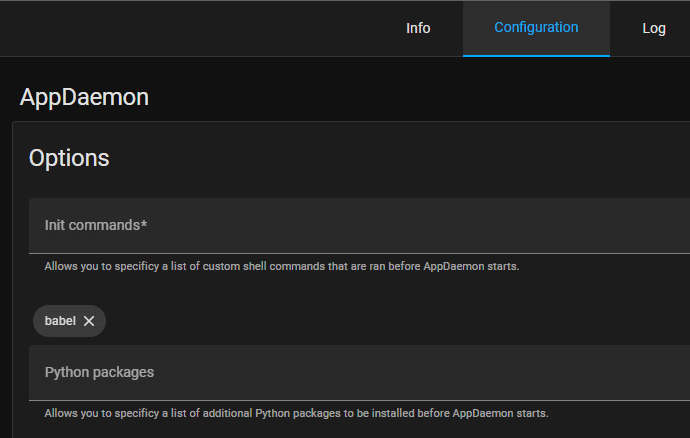
To localize the interface (date in your language), add the babel package to your AppDaemon. In the AppDaemon settings tab, in the python packages field, enter the text “babel” and save the settings.
Installing Studio Code Server and Home Assistant Community Store
To configure the NSPanel Lovelace UI, you will need to edit the apps.yaml file. Editing yaml files will be more convenient in the Studio Code Server interface.
HACS is the Home Assistant community store that will allow you to easily update integrations and community automation through the Home Assistant web user interface. You will get notified about updates. You can install them by simply clicking a button. I already wrote about how to install HACS in my previous articles.
Install Lovelace AppDaemon Backend Application
- Click on the Home Assistant web interface on the left menu bar on HACS.
- Click “Automations” on the right panel.
- In the lower right corner, click “Explore & download repositories.”
- Type NSPanel and click NSPanel Lovelace UI Backend in the list that appears.
- In the bottom right corner of the panel, click “Download this repository with HACS.”
- Now a confirmation panel will appear. Click “Download” and wait for the download.
- You now installed The Backend Application, and HACS will notify you when updates are available.
Configure MQTT on Tasmota and in AppDaemon configuration
First, set up a connection to your MQTT server in Tasmota.

Please fill in the “Topic” field as it will be in the configuration. Change “Topic” to something unique for your device, you’ll need it later in the appdaemon/apps.yaml settings.
Now configure the MQTT connection in the AppDaemon configuration file. Please add your MQTT server configuration, user, and password to appdaemon.yaml. Then restart the AppDaemon container after adding the MQTT configuration. You will find this file here: config/appdaemon/appdeamon.yaml
secrets: /config/secrets.yaml
appdaemon:
  latitude: 52.0
  longitude: 4.0
  elevation: 2
  time_zone: Europe/Berlin
  plugins:
    HASS:
      type: hass
    MQTT:
      type: mqtt
      namespace: mqtt
      client_id: "appdaemon"
      client_host: 192.168.75.30
      client_port: 1883
      client_user: "mqttuser"
      client_password: "mqttpassword"
      client_topics: NONE
http:
  url: http://127.0.0.1:5050
admin:
api:
hadashboard:
Configure NSPanel in AppDaemon
Add the following minimum configuration to the apps.yaml file located in config/appdaemon/apps/apps.yaml
nspanel-1:
  module: nspanel-lovelace-ui
  class: NsPanelLovelaceUIManager
  config:
    panelRecvTopic: "tele/tasmota_your_mqtt_topic/RESULT"
    panelSendTopic: "cmnd/tasmota_your_mqtt_topic/CustomSend"
Specify tasmota_your_mqtt_topic according to the topic used in the Tasmota MQTT configuration.
If your settings and configuration are correct, you should see the following screens on NSPanel:

Getting acquainted with an example of a complete NSPanel Lovelace UI configuration
Below, under the spoiler, you will find the full text from my NSPanel configuration file. Also, look at the images of several interface screens of my particular configuration. You can see the screensaver screen with the weather in the header of this article.


nspanel-1:
  module: nspanel-lovelace-ui
  class: NsPanelLovelaceUIManager
  config:
    panelRecvTopic: "tele/tasmota/RESULT"
    panelSendTopic: "cmnd/tasmota/CustomSend"
    sleepTimeout: 20
    sleepBrightness:
      - time: "7:00:00"
        value: 30
      - time: "23:00:00"
        value: 5
    locale: "uk_UA"
    screensaver:
      statusIcon1:
        entity: switch.tasmota # Entity ID з інтеграції tasmota в HomeAssistant
      statusIcon2:
        entity: switch.tasmota_4417937dfc18_switch_relay_1 # Entity ID з інтеграції tasmota в HomeAssistant

      entity: weather.home
      theme:
        time: [255, 255, 255]
        date: [255, 175, 0]
        tMainIcon: [57, 169, 255]
        bar: [57, 169, 0]
        autoWeather: true
        # Нижче задаємо колір піктограмам погоди (лише тоді, коли - autoWeather: true)
        clear-night: [150, 150, 100]
        cloudy: [75, 75, 75]
        exceptional: [255, 50, 50]
        fog: [150, 150, 150]
        hail: [200, 200, 200]
        lightning: [200, 200, 0]
        lightning-rainy: [200, 200, 150]
        partlycloudy: [150, 150, 150]
        pouring: [50, 50, 255]
        rainy: [100, 100, 255]
        snowy: [150, 150, 150]
        snowy-rainy: [150, 150, 255]
        sunny: [255, 255, 0]
        windy: [150, 150, 150]
        windy-variant: [255, 125, 125]
    cards:
      - type: cardAlarm
        entity: alarm_control_panel.ring_alarm
        supportedModes:
          - arm_home
          - arm_away
      - type: cardThermo
        title: Thermostat
        entity: climate.living_room
      - type: cardMedia
        entity: media_player.living_room_speaker
      - type: cardGrid
        title: Livingroom
        entities:
          - entity: fan.xiaomi_miio_device
            icon:
              "on": mdi:fan # піктограма в залежності від стану
              "off": mdi:fan-off
            color:
              "on": [20, 60, 255] # Колір піктогрми в залежності від стану
              "off": [126, 126, 126]
          - entity: light.livingroom_lights
            icon:
              "on": mdi:lightbulb-group
              "off": mdi:lightbulb-group-off
            color:
              "on": [225, 226, 20]
              "off": [126, 126, 126]
          - entity: light.gyver_lamp_esp_74e9c8
            icon: mdi:lava-lamp
            color:
              "on": [225, 226, 20]
              "off": [126, 126, 126]
          - entity: light.livingroom_table_background
            icon:
              "on": mdi:led-strip-variant
              "off": mdi:led-strip-variant-off
            color:
              "on": [225, 226, 20]
              "off": [126, 126, 126]
      - type: cardEntities
        title: Doors & Windows 1/2
        entities:
          - entity: binary_sensor.main_corridor_door_sensor_contact
            icon: mdi:door-open
          - entity: binary_sensor.terrace_door_sensor_contact
            icon: mdi:door-open
          - entity: binary_sensor.hallway_contact_sensor_ring
            icon: mdi:door-open
          - entity: binary_sensor.kitchen_window_sensor_contact
            icon: mdi:window-open
            name: Kitchen Window
      - type: cardEntities
        title: Doors & Windows 2/2
        entities:
          - entity: binary_sensor.livingroom_window_sensor_contact
            icon: mdi:window-open
          - entity: binary_sensor.kidsroom_window_sensor_contact
            icon: mdi:window-open
          - entity: binary_sensor.main_corridor_window_sensor_contact
            icon: mdi:window-open
          - entity: binary_sensor.toilet_window_sensor_contact
            icon: mdi:window-open
      - type: cardQR
        title: Guest Wifi Network
        qrCode: "WIFI:S:SmartHome Guests;T:WPA;P:1qaz2wsx;;" # SSID та ПАРОЛЬ в QR
        entities: # Вкажіть SSID та ПАРОЛЬ якщо немає змоги сканувати QR
          - entity: iText.SmartHome Guests
            name: Name
            icon: mdi:wifi
          - entity: iText. 1qaz2wsx
            name: Password
            icon: mdi:key
That’s it for today. See you!
P.S.
After pressing the switch button, the relay response time of the device with Tasmota firmware became a little longer than it was with ESPhome. Perhaps the reason is that NSPanel is waiting for a command to turn on the relay from Home Assistant. At the same time, in ESPHome, all the “magic” happens only in the device without waiting for a response from Home Assistant.
I changed Tasmota on the NSPanel and installed ESPhome with the Lovelace UI component. You can find the ESPhome configuration file in my GitHub repository at this link. I changed Tasmota on the NSPanel and installed ESPhome with the Lovelace UI component. You can find the ESPhome configuration file in my GitHub repository at this link. Now the switches are working quite lively and, frankly speaking, it is more familiar to me to configure ESPhome.


